I’m having a critical issue logging into the Distill Web Monitor Desktop Application (I’m on a Starter Subscription) and I’m hoping someone can help me resolve this specific problem.
The Situation:
Login Attempt: I start the login process from the Desktop App (running on Windows 11).
Browser Success: The application opens my browser (Firefox) and the login on the Distill website is successful.
Token Generated: Since the automatic redirection fails, the browser displays the manual fallback message, including the required token:
“Successfully logged in to the desktop app”“Could not log in? Enter the token manually in the desktop app: [Long Alphanumeric Code]” (Example image attached)
I have thoroughly checked the interface of the Desktop Application, but there is no field, text box, or clickable link to input the required manual token. The app remains stuck on the initial login screen, and I cannot complete the process to sync my monitors.
Troubleshooting I’ve already done:
Closed and restarted the app multiple times.
Ran the application “As Administrator”.
Cleared browser cache and cookies.
Logged out and logged back into the web platform.
I even deleted the “Desktop App” entry from my Workspace Settings > Devices to force a fresh connection.
Could anyone in the community or a moderator advise on:
Where exactly is the hidden/expected field for the manual token input?
Is this a known bug with the current version of the Desktop App?
Any help would be greatly appreciated as I cannot use the local monitoring feature without logging in.
Thank you!
My Details:
Subscription Plan: Starter
Operating System: Windows 11, ver. 25H2
Desktop App Version: Distill Web Monitor-win32-x64-3.13.2-beta.exe
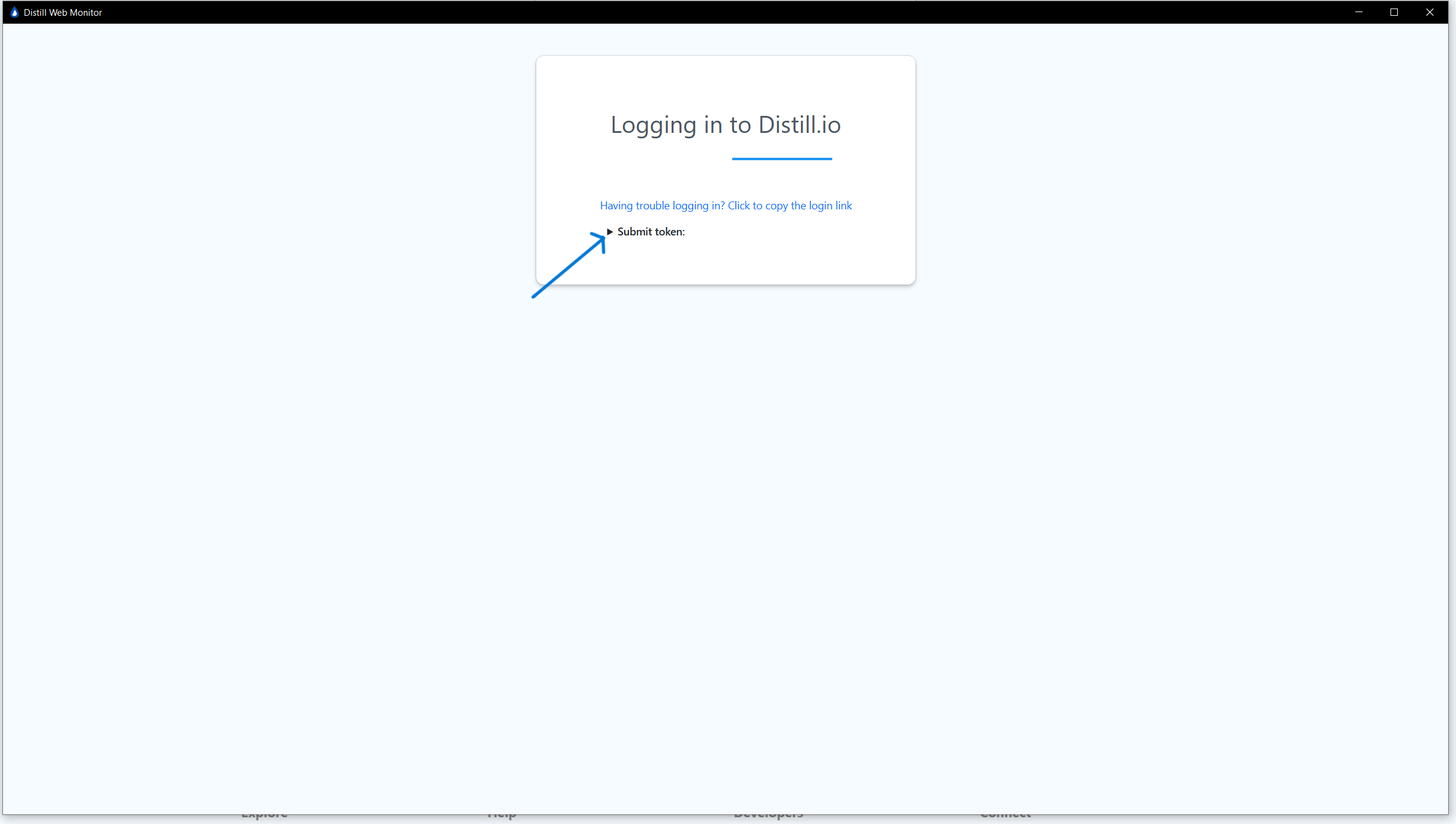
Right after typing the username and password and clicking the Login button, the page (as shown in the Screenshot 1 above) should appear in the desktop app.
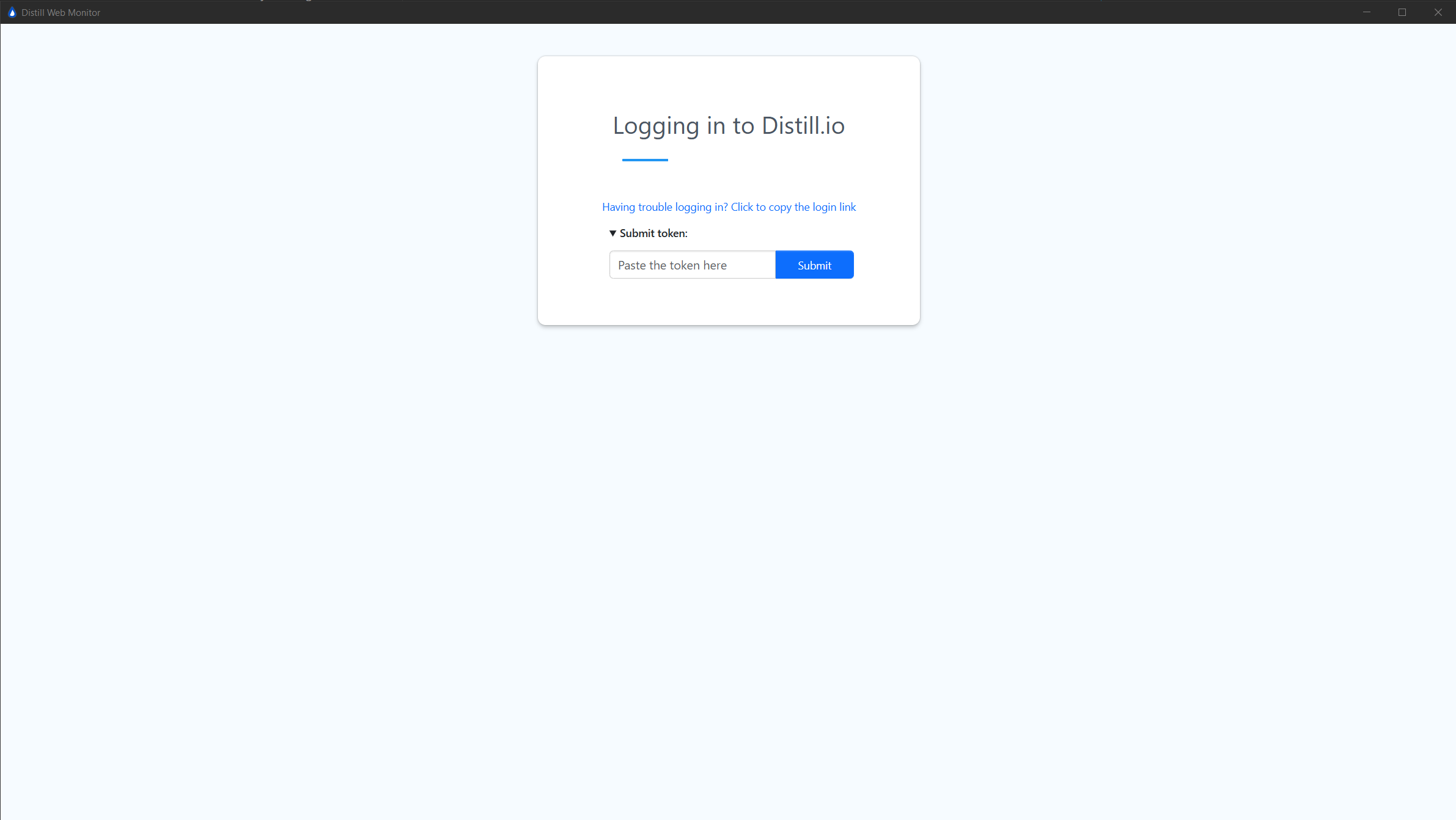
Clicking on the Submit Token button shows an input box for pasting the token (as shown in the Screenshot 2 below) and then proceeding with the login flow. Are you able to see this intermediate login page?
Unfortunately no, but we’ll be working on fixing it asap.
If you are not able to see the page shown in the screenshots above, you can try clearing the app’s local data and the launching the app again. To do that, delete the directory in the following path: C:\Users\<your_username>\AppData\Roaming\Distill Web Monitor
After deleting the above directory, try launching the app again.
If the above step doesn’t work, do give a reply here, we can try and launch the app in a different way so as to see possible errors in a console.
Thank you very much for your prompt and extremely effective assistance!
I confirm that the solution of deleting the directory at C:\Users\<your_username>\AppData\Roaming\Distill Web Monitor has completely resolved the issue. The desktop app is now working correctly, and the login process completed successfully without any further problems.
Hi @meotto ,
Glad to see that the issue is fixed.
We were able to identify the issue and have released a new update of the Desktop app, version 3.13.3, with the fix.