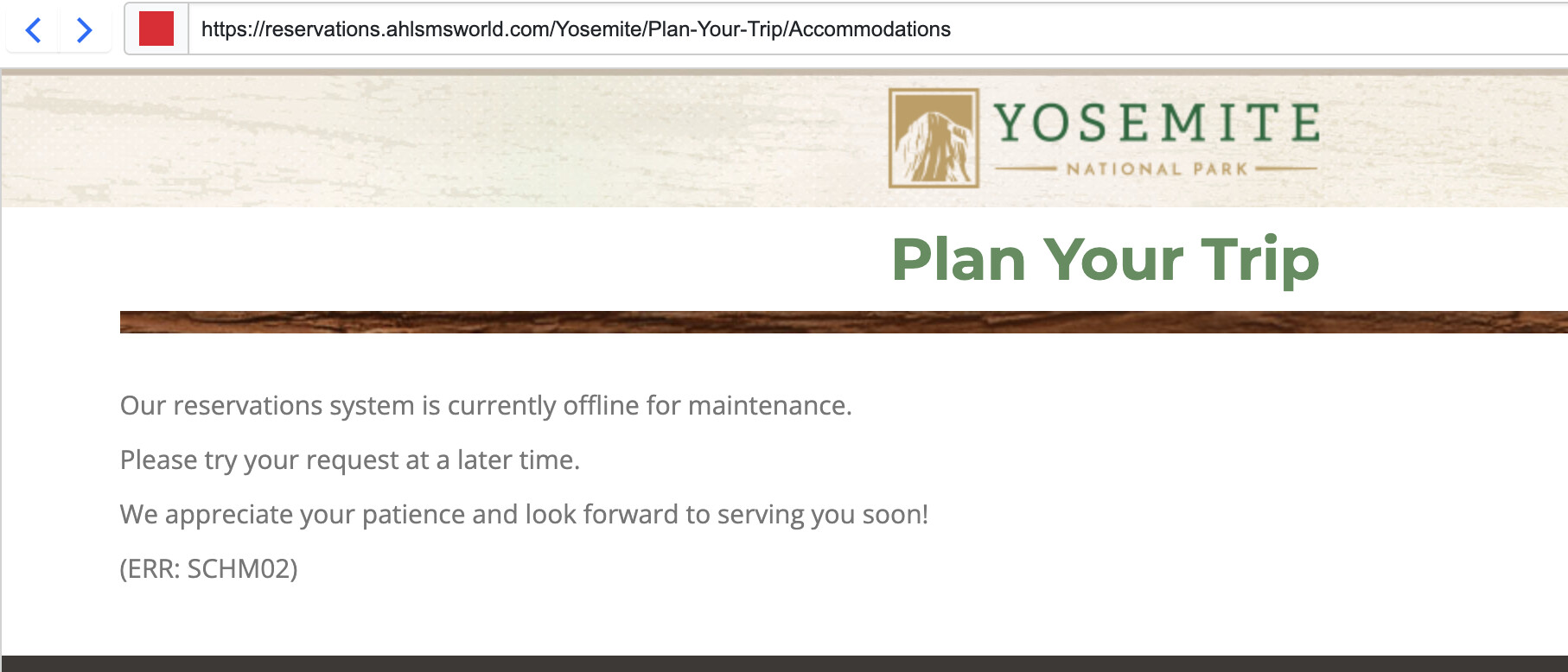
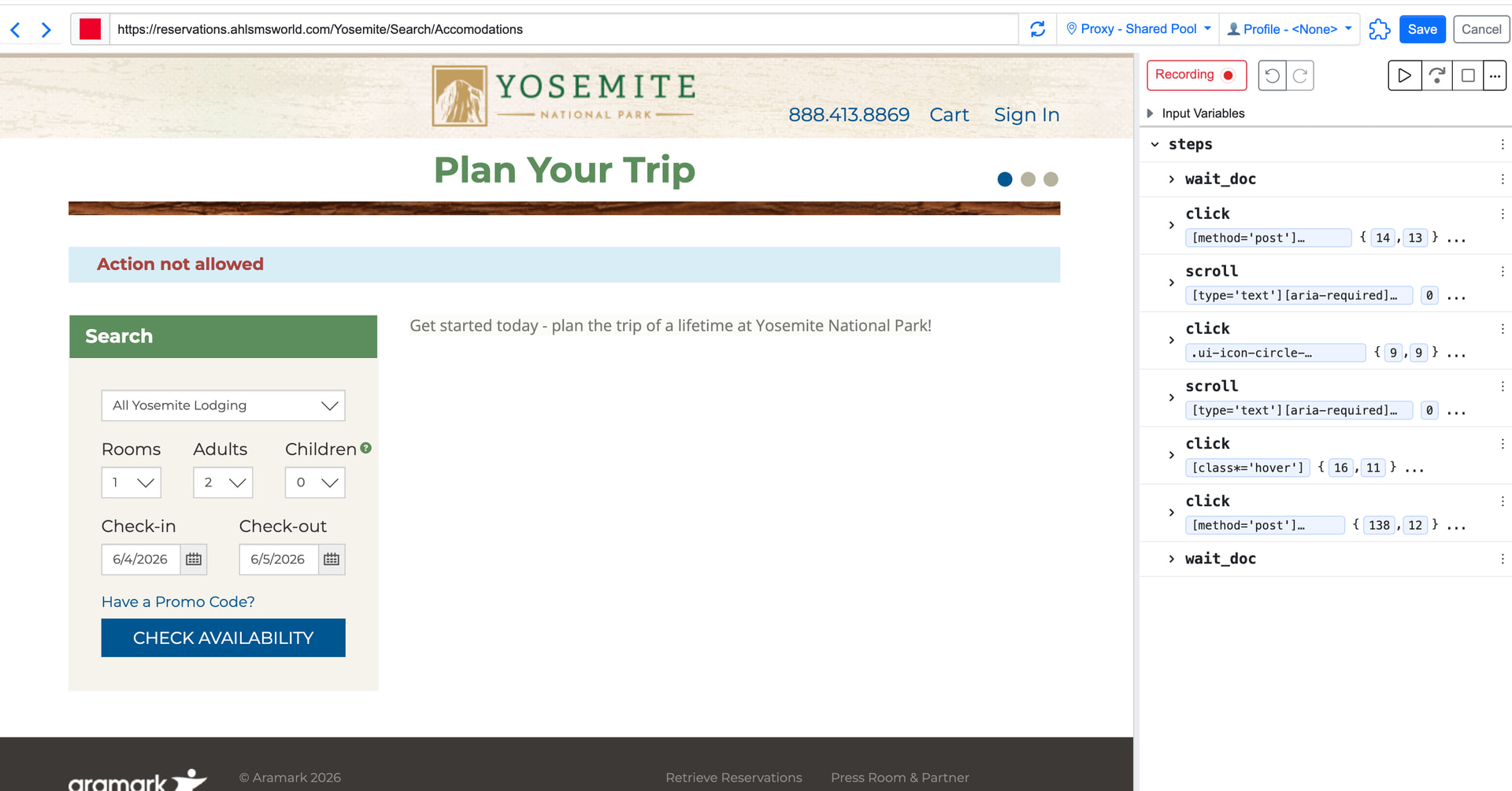
I am trying to monitor a lodging website for Yosemite national park. When I attempt to record a macro, the website rejects the search and returns a site generated message that says “action not allowed”. It seems the macro loads the page/s from the cloud server pool rather than locally, and somehow the site is detecting it and rejecting the search. I don’t see how to change the macro so it is running locally.
While recording a macro, it does run via our cloud environment
Once recorded, you can run the monitor (and macro) locally
Just to confirm — are you seeing the “action not allowed” message specifically while recording the macro? If possible, could you please share a full screenshot of the webpage at the moment that message appears? That will help us understand exactly how the site is blocking the request.
In the meantime, once the site is stable again, I’ll test it from our side and see if there’s a workaround — for example, using a US proxy during recording or another approach.
@yosemitetrip Thanks for sharing. This is most likely happening because the website is detecting automated/cloud-based execution and blocking the request, which results in the “Action not allowed” message.
I’ve shared this case with our engineering team, as we’re actively working on improving compatibility for such websites. We’re aiming to deploy improvements for these kinds of scenarios in the coming weeks.
Workaround
You can still make this work:
Record the Macro steps until you reach the point where “Action not allowed” appears
Save the Macro
Open the website directly in your local Chrome browser
Manually perform the steps until the availability results page loads correctly
Use the Distill Chrome extension → “Monitor parts of page” to select the element you want to track
Save the monitor
Go to the monitor’s Options page and attach the Macro you created
This works because:
The page loads correctly in your local environment (no blocking)
The Macro helps automate navigation, while execution stays tied to your local session
Give this a try, and if you run into any issues while setting it up, let us know — we’ll help you through it.