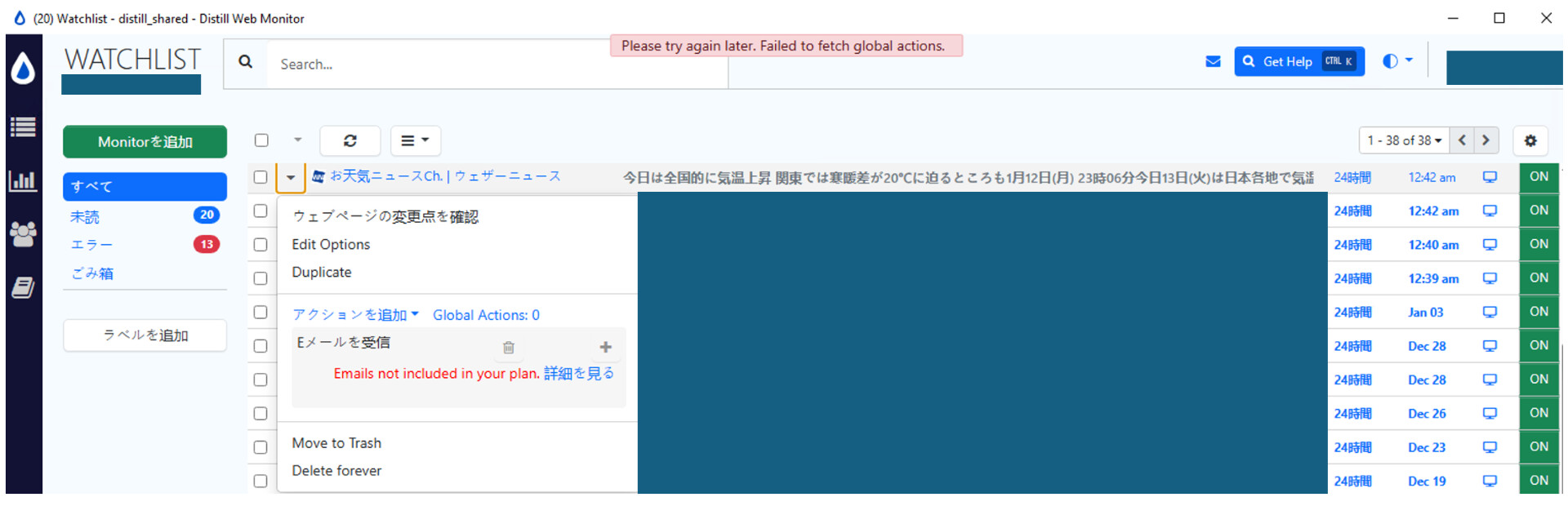
Since around January 6 (JST), our email update notifications have stopped. We use the Distill app installed on a VM(Windows) and are subscribed to the Starter plan; we have not reached the monthly maximum usage.
In the VM app:
The email settings screen shows: “Email not included in your plan.”
A banner at the top also shows: “Please try again later. Failed to fetch global actions.”
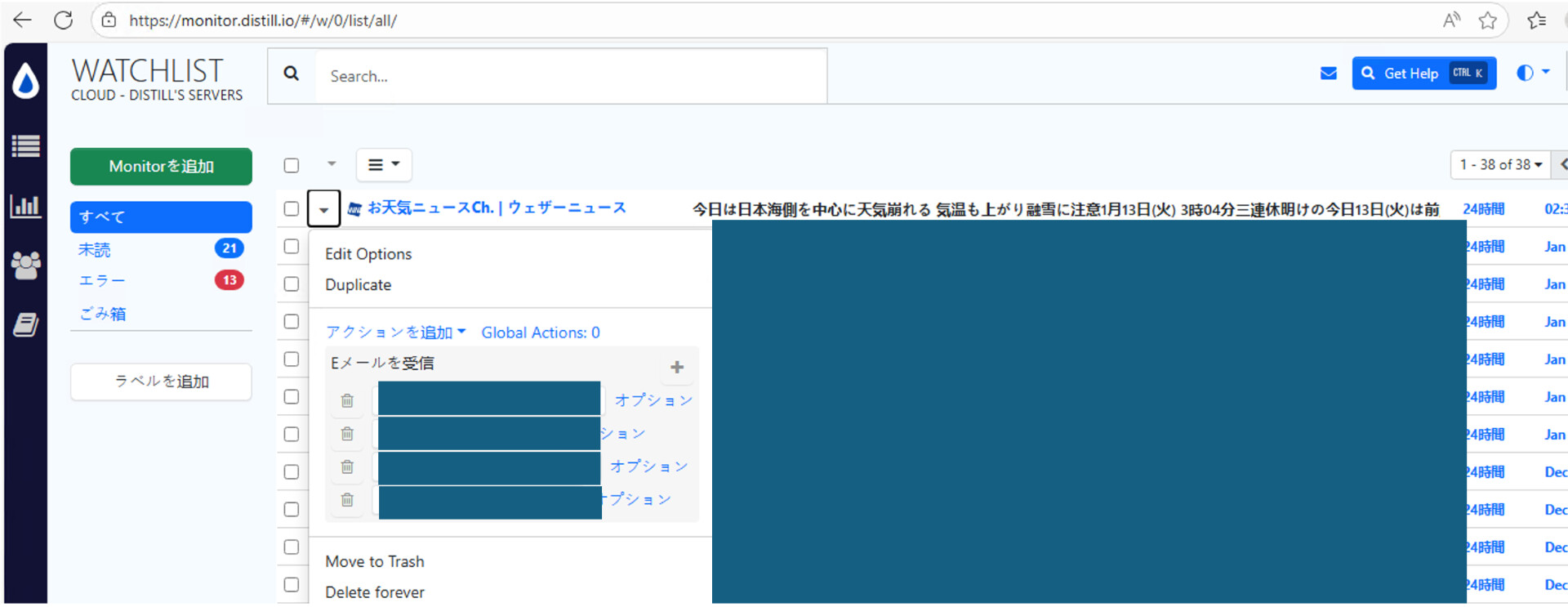
In the browser Watchlist (cloud):
- There are no errors, and the configured recipient email addresses are displayed correctly.
Historically, the browser Watchlist and the app Watchlist were in sync, but they now appear out of sync (the VM app does not reflect the cloud state).
Is this a bug on the app side?
Screenshots:
Email settings screen with "Email not included in your plan. "Top banner showing “Please try again later. Failed to fetch global actions.”
@distill_shared Thanks for the detailed information and for your patience while we looked into this.
Based on everything you’re seeing, this issue is not related to your plan or email limits, and it’s very unlikely to be an application bug. The behavior you’re experiencing is consistent with a network-level restriction on the VM that’s preventing the Distill App from maintaining the required connections to our servers. This commonly happens on VMs behind firewalls, secure web gateways, or TLS inspection systems, which may interrupt or buffer continuous HTTPS connections.
Please review the VM’s network configuration and confirm the following:
TLS / HTTPS inspection
Ensure traffic to *.distill.io is excluded from TLS inspection
If a web gateway or firewall is in place, add a bypass rule for Distill domains
Firewall / proxy rules
Allow outbound HTTPS traffic (port 443) to all *.distill.io endpoints
Make sure long-lived HTTP connections are not being dropped or timed out
Windows firewall
Confirm the Distill Desktop App is allowed through Windows Defender Firewall
Restart the app after making any changes
Network policy changes
If anything in the VM’s network setup changed around the time this issue started, please double-check those settings
Once these connections are allowed, the Distill App should automatically resync with the cloud, the banner message should disappear, and email notifications should resume.